Trace Drawing: How To Draw
- 4.6
- Rating
- 10.00M
- Installs
- Free
- Price
 Analysis by App-foxy
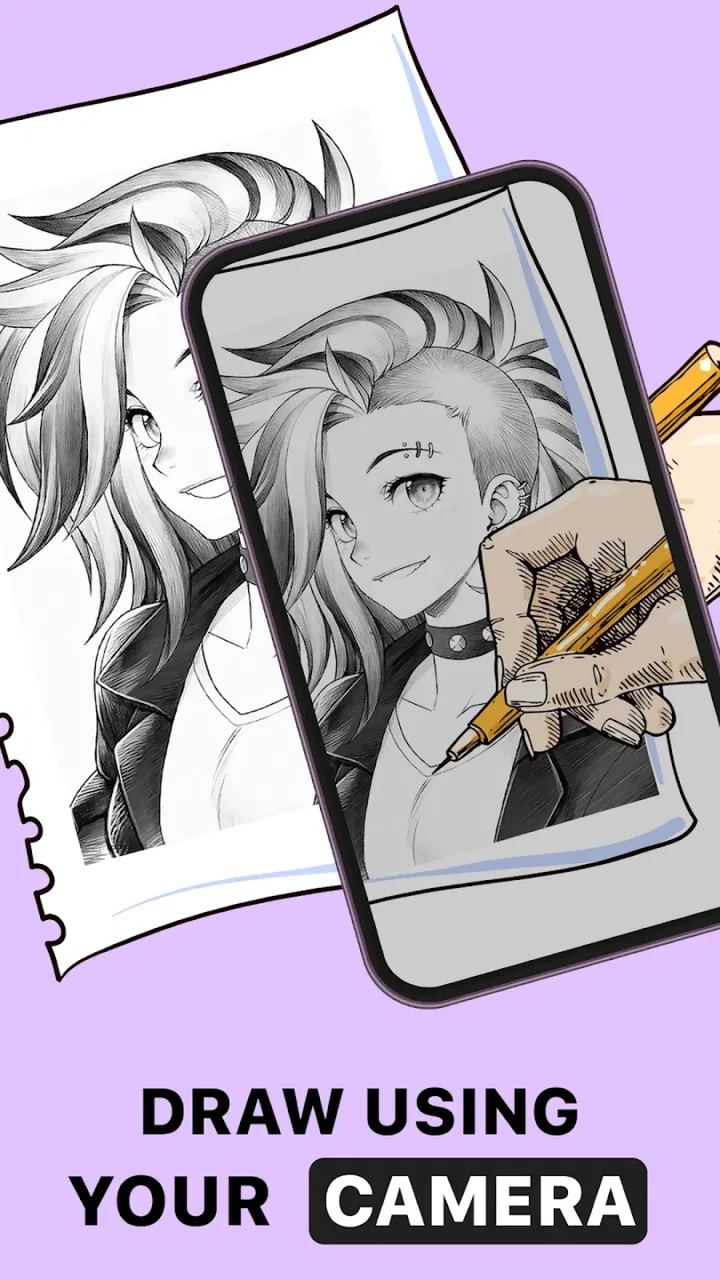
I tried AR Drawing: Trace Anything as a practical drawing aid rather than treating it like a full digital art studio. Its main idea is simple: choose an image, use the phone’s camera view to project that reference onto a real surface, and trace what you see. That makes it especially interesting in a household where one person wants to sketch while another wants to watch, suggest subjects, or help position the paper.
The app sits in the Art & Design category and is made by GeniusTools Labs. It is free to install, with optional in-app purchases ranging from $0.99 to $99.99 per item. I found the basic concept easy to understand, but the quality of the result depends heavily on how carefully the user prepares the surface, steadies the phone, and chooses the reference image. In other words, the app can make drawing more approachable, but it does not remove the need for patience or judgment.
It is rated for Everyone, which fits the straightforward creative purpose, and its current version is 4.1.0. The app has built a sizeable audience, with over five million installs and an average rating of 4.6 from around fifty thousand ratings. Those figures suggest that the tracing approach connects with many casual users, although popularity should not be confused with professional-level drawing tools.
You May Also Like

 Blood Strike: 2.5 Anniversary
Blood Strike’s Loadouts Turn Every Drop Into a Tactical Gamble
A close look at Blood Strike’s custom loadouts: how fast access to signature weapons reshapes its battle royale rhythm, rewards preparation, and narrows the gap between fights.

 Pandora - Music & Podcasts
Pandora’s Music Is Easy to Start, but Harder to Recover
Pandora’s strength is its low-effort path from a seed to a station. Its weak spot is how much confidence it asks you to place in connection, setup, and quiet recovery.

 8 Ball Pool
 Is Built on Rivalries, Rematches, and Routine
A close look at the rivalries, rematches, shared routines, and unanswered safety questions that turn a quick pool match into a persistent mobile community.

 Samsung Music
’s Quiet Strength Is Playing What You Already Own
Its reach comes less from spectacle than from dependable access to a personal library. That simplicity is both the app’s strongest retention engine and its ceiling.

 AccuWeather: Weather Radar
AccuWeather Review: A Quick, Clear Forecast for Everyday Decisions
For everyday plans, the best forecast is the one you can understand quickly. AccuWeather makes rain timing, radar, and local conditions easy to act on, with a few trade-offs.

 Hill Climb Racing
Why Hill Climb Racing Still Turns Crashes Into One More Run
A tiny car, a bumpy hill and one more upgrade: Hill Climb Racing keeps resurfacing because its simple chaos makes every near-miss feel personal.
More From Our News Desk
View All News


How it works when several people share the same device
The most natural shared-use situation is a parent, sibling, or friend holding the phone while someone else draws. One person can select a subject and help frame it, while the other concentrates on following the projected lines. This division works better than passing the device back and forth every few seconds, particularly when the phone needs to remain in one position above the paper.
I would use it for a relaxed evening activity, a school-art warm-up, or a quick way to turn a favorite picture into a hand-drawn outline. It is also useful when someone has an idea but lacks confidence in freehand proportions. A beginner can focus on line control and shading instead of trying to invent the entire shape from memory.
The shared-device angle does introduce a practical boundary: the person drawing needs uninterrupted access to the surface, while the person managing the phone needs to avoid accidental taps or movement. A small change in the phone’s angle can shift the apparent projection and make the tracing less consistent. For that reason, I prefer setting up the image first, then handing the drawing task to one person rather than treating the app like a constantly changing group activity.
It helps to agree on the paper size and subject before starting. If one user chooses a detailed portrait and another expects a quick cartoon, the session can become frustrating. The app is most enjoyable when everyone understands that it is a guide, not an automatic printer that reproduces an image perfectly on paper.
Preparing the surface makes a bigger difference than expected
The phone should be positioned so the projected reference remains stable while the user traces. A flat, uncluttered surface is easier to work on than a lap or uneven table. Good lighting also matters: the drawing must remain visible, but harsh reflections can make the camera view uncomfortable to follow.
One useful habit is to begin with a simple outline before attempting a highly detailed image. This reveals whether the phone is stable and whether the selected scale is comfortable. If the first subject is too complicated, it becomes difficult to tell whether a disappointing result came from the app, the image, or the user’s setup.
I also recommend leaving room around the drawing instead of enlarging the reference until it fills every corner of the page. A little margin gives the hand space to move and makes it easier to correct a line without crowding nearby details. This is a small workflow choice, but it noticeably improves the experience for younger users and first-time sketchers.
Another practical tip is to trace in stages. I would first mark the main silhouette, then add large internal shapes, and only afterward attempt smaller features. If the phone shifts during the process, the major structure is already established, and the remaining detail can be adjusted by eye. Trying to trace every tiny line continuously is less forgiving.
What to expect from the image workflow
The app’s appeal comes from making an existing image usable as a drawing reference. That is more immediate than opening a blank canvas and wondering where to begin. It can turn a photograph, illustration, or familiar object into a starting point for a physical sketch, which is why it feels different from ordinary drawing apps that keep the entire process on the screen.
Still, the source image needs to be chosen thoughtfully. A busy photograph with complicated lighting may contain too many lines to follow comfortably. A clean silhouette or simplified illustration is usually a better first choice. For a household activity, I would prepare two or three possible references in advance so the group can choose one that matches the available time and skill level.
The useful trade-off is control versus speed. A simple image produces a clearer tracing and a more satisfying result quickly. A detailed image can be more rewarding for an experienced artist, but it demands steadier positioning and more decisions about which lines are actually important. The app assists with placement; it does not decide which visual information deserves emphasis.
I would not describe this as a replacement for a drawing tablet, vector editor, or layered illustration program. Those tools are better when I need editable strokes, precise color work, undo history, or a polished digital export. This app is aimed at the moment when I want to transfer an image onto paper and use my own hand to finish the work.
Setting boundaries on a shared phone
Because the experience depends on the camera view and a stable position, device handoff needs a little coordination. Before starting, I would let the person operating the phone choose the reference and set the scale. Once the drawing begins, the other user should avoid opening unrelated apps or rotating the device. This is not a formal family-control feature; it is simply a sensible agreement that protects the current drawing session.
That distinction matters in a home with several people using one phone or tablet. The app can support a shared creative activity, but it does not turn the device into a multi-user workspace. Each person should know whose drawing is in progress and when it is safe to change the image. If the device is needed for another task, saving the physical work-in-progress and taking a quick reference photo can help the group resume later, although the drawing itself remains a real-world object rather than a project managed inside a collaborative account.
I would also keep expectations clear around purchases. The app is free, but optional purchases are available, from a small amount up to $99.99 per item. On a shared device, the person choosing images or exploring the app should not assume that every visible option is included in the free experience. An adult managing the device should handle purchase decisions, especially when children are involved.
This is less about mistrust and more about avoiding accidental spending. A child may reasonably interpret a prominent drawing option as part of the normal activity, while an adult may want to stay within a particular budget. Agreeing beforehand that the session will use only free tools keeps the creative part simple and prevents an awkward interruption.
There is also a privacy-related household consideration in any camera-based activity: users should be mindful of what appears behind the paper or in the surrounding view. I would set up the drawing area away from personal documents and unnecessary background clutter. The app’s purpose is artistic, so there is no reason to include private household material in the camera frame.
Coordinating the person holding the phone and the person drawing
The smoothest arrangement I found is to give each person a defined role. The phone holder watches the alignment and keeps the device steady. The artist traces and says when a pause is needed. If both people try to adjust the setup at once, the image can move at the exact moment a line is being drawn.
For younger artists, short sessions work better than demanding a complete picture in one sitting. Start with the largest shapes, take a break, and return to the smaller details. This turns the app into a guided practice tool instead of a test that must be finished perfectly. It also gives the child a chance to add personal changes rather than copying every line.
For adults sharing the app, the coordination problem is different. One person may want accuracy, while another may prefer creative freedom. I think the best compromise is to use the projection for proportion and placement, then deliberately alter the final drawing with different textures, colors, or background elements. That keeps the result personal and avoids the feeling that the app has done the artistic work by itself.
A particularly useful workflow is to make a light structural pass first. Instead of pressing hard on the paper, mark the main boundaries gently, then remove or refine them after the phone is set aside. This makes the final piece look less like a rigid tracing and gives the artist room to correct the reference where it does not translate well to paper.
Age, trust, and realistic expectations
The Everyone rating makes sense for a general drawing utility, and I can see it working well for children with an interested adult nearby. The rating does not mean every child will find the setup effortless. Holding a device steady, choosing a suitable image, and tracing patiently are separate skills. Younger users may need help with all three.
I would introduce it as a creative guide rather than a shortcut to perfect art. That language matters because children can become discouraged if the first drawing does not resemble the reference. The app provides visual assistance, but hand pressure, paper movement, phone position, and personal interpretation still shape the result.
Trust also matters when images come from a shared device. I would let the child choose from familiar, appropriate pictures and keep the selection process visible. If several family members use the phone, it is helpful to explain that the app is being used for the current drawing, not as a private space for changing someone else’s work or browsing without agreement.
For teenagers and adults, the app can be a low-pressure entry point into observational drawing. Someone who believes they “cannot draw” may discover that tracing a reference helps them understand proportion, curves, and the relationship between large and small forms. The limitation is that tracing alone does not teach every underlying skill. Users who want to improve seriously should eventually practice freehand observation, perspective, and value studies without relying on the projection.
That is where a conventional sketchbook or a digital drawing app may be the better choice. A sketchbook encourages direct observation and removes the need to manage a phone. A full-featured digital art tool offers layers, brushes, corrections, and reusable files. AR Drawing: Trace Anything occupies a narrower but useful middle ground: it connects a reference image with physical drawing in a way that feels approachable.
Where it fits in a household creative routine
I see the app working best as an occasional activity with a clear outcome. A family could choose one object, animal, or character, trace the main form, and then let each person decorate the result differently. The shared reference creates coordination, while the finishing choices keep the drawings from becoming identical.
It can also help with handmade cards, simple room decorations, classroom-style practice, or planning a larger illustration on paper. The strongest use cases are those where the user wants a visible physical result and needs help getting the initial proportions onto the page.
It is less suitable for people looking for a complete digital art workflow. If I wanted to paint directly on the phone, organize multiple layers, or export a refined illustration, I would choose a dedicated drawing application instead. If I wanted a purely educational tracing worksheet, printed references might be less distracting and easier to share among several children.
There is a further trade-off for shared homes: the app encourages cooperation, but it is not inherently designed around separate profiles or long-term family projects. I would not expect each household member to have a distinct creative workspace inside it. Instead, I would treat each physical drawing as the boundary of the session and label or store the finished work separately if several people are using the same device.
The current version, 4.1.0, gives the app a contemporary starting point for users on Android devices running at least version 5.0. That broad minimum requirement makes it relevant for some older devices, but the actual comfort of the experience still depends on the phone’s camera, screen, stability, and available space. A device that is technically supported may not be pleasant to use if its display is difficult to see or its camera view is unstable.
I appreciate that the app can be tried without an upfront purchase. That lowers the barrier for a family deciding whether the tracing method suits them. At the same time, the range of optional purchase prices means I would review each choice carefully before confirming anything. Free access is enough to test the central idea; there is no need to spend immediately just to find out whether the workflow fits your household.
My verdict for shared household use
After using it, I would recommend AR Drawing: Trace Anything to families, beginners, and casual artists who want a more guided way to draw on paper. Its best quality is not that it makes art automatic, but that it gives hesitant users a clear place to start. With one person managing the phone and another tracing, it can become a friendly shared activity rather than a solitary screen experience.
I would skip it if my main goal were professional digital illustration, precise editing, or a private multi-user workspace. I would also avoid presenting it to a young child as a guaranteed path to perfect drawings. The app rewards preparation, stable positioning, suitable reference images, and realistic expectations.
My practical recommendation is to begin with a simple subject, use a flat surface, agree who controls the device, and keep purchase decisions with an adult. Let the projected outline guide the structure, then encourage the artist to change, shade, and personalize the result. The most satisfying results come when the app starts the drawing but the person finishes it.
For a free Art & Design app from GeniusTools Labs, it offers a focused idea that is easy to explain and genuinely useful in the right setting. Its strong rating and broad install base reflect an approachable concept, but the real test is whether you enjoy the physical tracing process. If your household wants a simple creative project that connects a phone with paper, I think it is worth trying. If you need advanced digital tools or independent account-based workspaces, a conventional drawing app will serve you better.
FAQs for Trace Drawing: How To Draw
01What devices are compatible with AR Drawing: Trace Anything?
AR Drawing: Trace Anything is compatible with most modern iOS and Android devices that support augmented reality functionality. It requires a device with ARKit (for iOS) or ARCore (for Android). Ensure your device's software is updated to the latest version to enjoy the best experience.
02Is AR Drawing: Trace Anything free to use?
The app is free to download with basic features available at no cost. However, it offers in-app purchases for additional tracing templates and tools. Users can choose to upgrade to a premium version for an ad-free experience and access to exclusive content.
03How does AR Drawing: Trace Anything work?
The app utilizes augmented reality technology to overlay traceable images onto real-world surfaces via your device's camera. Users can follow these guides to create drawings on paper or other surfaces, making it easy for beginners to improve their drawing skills.
04Do I need special equipment to use AR Drawing: Trace Anything?
No special equipment is required beyond your compatible smartphone or tablet. However, for optimal use, a stable surface and good lighting conditions are recommended. This will help ensure the AR overlays are clear and easy to follow when tracing.
05Can I create my own templates in AR Drawing: Trace Anything?
Yes, the app allows users to create custom templates. You can import images and convert them into traceable guides. This feature lets you personalize your drawing projects and expand beyond the preloaded templates available in the app.
Pros
- Easy-to-use tracing interface.
- Wide variety of drawing templates.
- Supports custom image imports.
- Adjustable transparency for tracing.
- No internet required to use.
Cons
- Limited free content options.
- Ads can be intrusive.
- No built-in drawing tools.
- Requires stable device positioning.
- Some features need a subscription.

Trace Drawing: How To Draw
Gallery